About the Integration Import Page
Development Manager is integrated with Online Giving. This capability enables organizations users of ParishSOFT's Online Giving application to import contribution and pledge data directly into Development Manager without using an import file.
Access to the Integration Import Page
If your organization uses ParishSOFT's Online Giving application, you should have access to the Integration Import page, which is access by selecting the Integration option on the Imports menu.
 If you do not see the Integration option on the Imports menu, contact ParishSOFT Support for assistance. For all the ways you can contact Support, go to How to Contact Us.
Overview
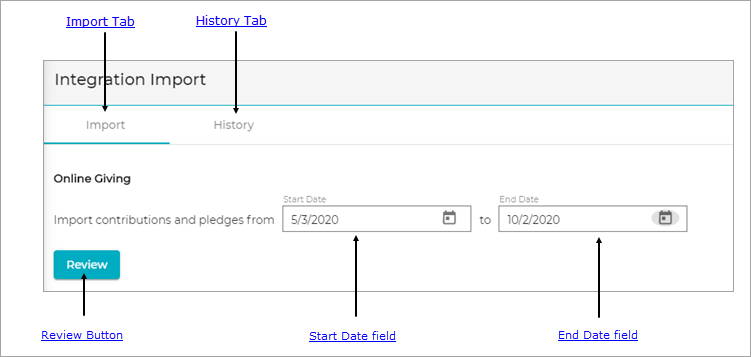
Contributions and pledge data from Online Giving are imported into Development Manager on the Integration Import page. The illustration below identifies the main elements on this page. Click a link in the illustration to jump to a detailed description of the element.
Import Tab
The Import tab shows information about the file you are importing from ParishSOFT's Online Giving application. The import file can contain both contribution and pledge records. The top of the tab, illustrated below, provides a count of the contribution records and pledge records in the file along with their respective dollar amount totals.
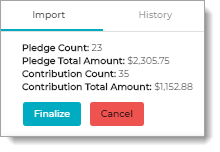
The bottom of the tab lists the individual records in the import file. Each contribution or pledge record in the import file is defined on a separate row. Each column references a field in the record, for example, Donor ID, Amount, and Fund.
History Tab
The History tab displays a line item for each successful Online Giving import. Each entry in the file provides the following details:
- Import Date
- Imported by (Member name)
- Import Start Date
- Import End Date
- Batch Name
- Contribution Total
- Pledge Total
Review Button
The  button becomes active after you specify a date range for contributions and pledges in the file to be imported. Click it to view a summary of the file and a list of records in the file that meet your date range criteria. You can use this information to verify the contents of the file before importing it.
Start Date Field
Specify a date range for contributions and pledges in the import file. In this field, enter the beginning date of the range. You can type a date in the field or click  and select a date from the displayed calendar.
End Date Field
Specify a date range for contributions and pledges in the import file. In this field, enter the ending date of the range. You can type a date in the field or click and select a date from the displayed calendar.
Related Topics
How to Import Contribution and Pledge Records from Online Giving